Optimizer
Automatically fine the points that match your desired target curves.
Overview
Global optimization searches the entire solution space of a given problem to get the best possible match to a set of desired conditions. Our solver takes your target kinematic curves and a set of boundary conditions on the points and searches for the best possible configuration.
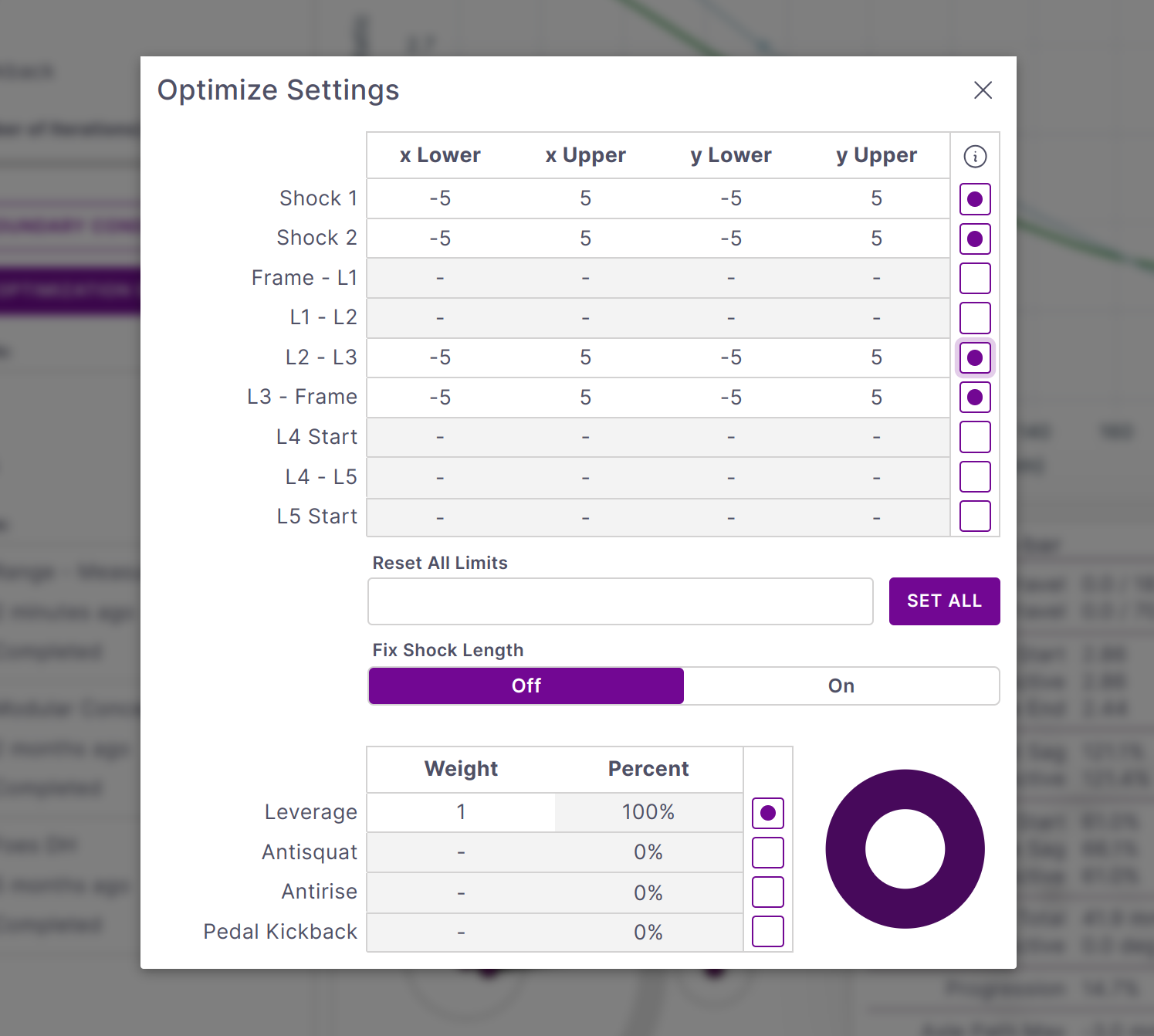
As with most mathematical optimizations the boundary conditions have a very strong influence on the outcome and should be set carefully and specifically to your desired outcome. Some good strategies are:
-
Allow enough freedom in the boundary conditions. For example allowing only a single point to move or restricting point limits to only a very small distance will result in the total solution space being quite small and likely similar to the starting conditions. This may prevent any close solution from being found.
-
Restrict boundary conditions where needed . Restrict your boundary conditions to realistic limits to prevent the solver honing in on unrealistic point positions (such as pivots behind the axle). Sometimes it can be helpful to run several low resolution studies and progressively restrict point movement in line with your intended design direction.
-
Run more low resolution solves . Solve times are much quicker for lower resolutions solves but not necessarily less accurate. It is almost always advantageous to run several fast solves to understand where the results are being driven and altering boundary conditions as needed before further optimization.
Run a Study
1. Set Target Curves
Targets curves can be set for the 4 primary kinematic metrics of Vertical Leverage, Antisquat, Antirise, and Pedal Kickback. Select the target or set of targets you want to use from the list under the Optimize tab. A default target curve will be generated for each selection.
The target travel should be set manually and then the handles of the curve can be dragged to set the target shape. Additional curve handles can be created and removed by double clicking on the curve.
The plot context menu can be opened by right clicking and can be used to manually set the starting and ending leverage for the target curve.