Loading and Saving Bikes
Searching and Loading Bikes
The bike Search Panel is found by clicking the round Add Bike button below the plot area.
Available options will appear in the dropdowns and autosearch as you type. Generally it is a good idea to start with model year or brand to quickly filter down the list. If there are multiple versions of a bike the version field must be selected last. Otherwise the field will be autofilled.

Database Selection
Each database is searched independently. Select the appropriate database using the Database Selector at the top of the panel.
-
Public Database: Read-only and allows you to load default templates and bikes.
-
Private Database: Visible only to the logged in user.
-
Team Database: visible to all members of your team. All team members can search and view items in the database but saving and deletion privileges are set by the team administrator.
Setting Bike Search Info
The bike information used for searching is set in the Layout tab under the Bike Info heading. All fields must be filled to save a bike. If there is a team database available you can select where to save the bike using the Database Selector.
Saving Bikes
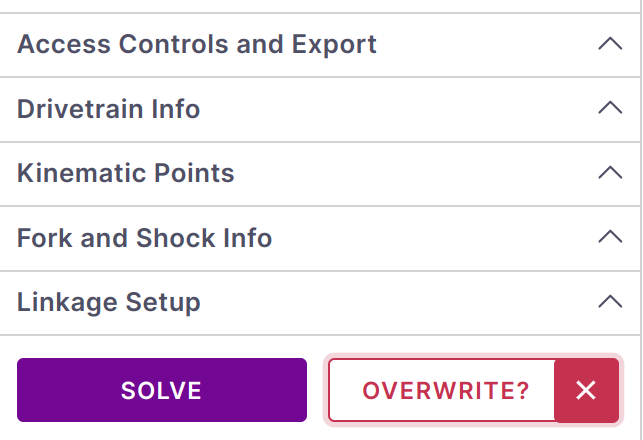
To save a bike to the database click the Save Bike button on the Layout tab. The file will automatically be compared to any existing files and offer a prompt to save as a new file or overwrite an existing one. The bike is saved to the database selected under the Bike Info heading.
To delete a bike you must use the Manage Database dashboard.
File Naming
Each bike is stored as a single file object. The combination of the bikes brand, model year, name and version must be unique. Bikes in different storage areas (such as the private and team databases) can have the same name combination.
When saving, a confirmation of whether you are overwriting an existing file or creating a new file will be shown. If you want to keep multiple configurations of the same bike you can use the Version field to differentiate each different setup. If you want to save a model to a different database simply select the database from the Bike Info section of the Layout tab and then save. You will be warned about any potential name conflicts.
Local Files
Bike files can also be saved to and loaded from your local files system. Under the Layout tab you can export files using Access Controls and Export . This will export a bike file that can be loaded using the desktop app.
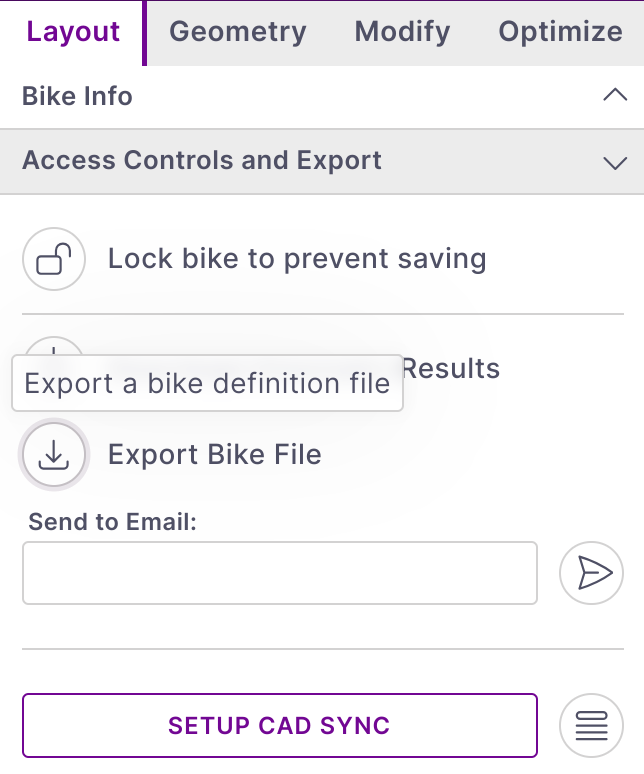
For browser security reasons files are never overwritten on your hard drive and a fresh copy will always be downloaded with a number appended to the filename as needed.
If using the desktop app you can load and save direct to the disk.
File Protections
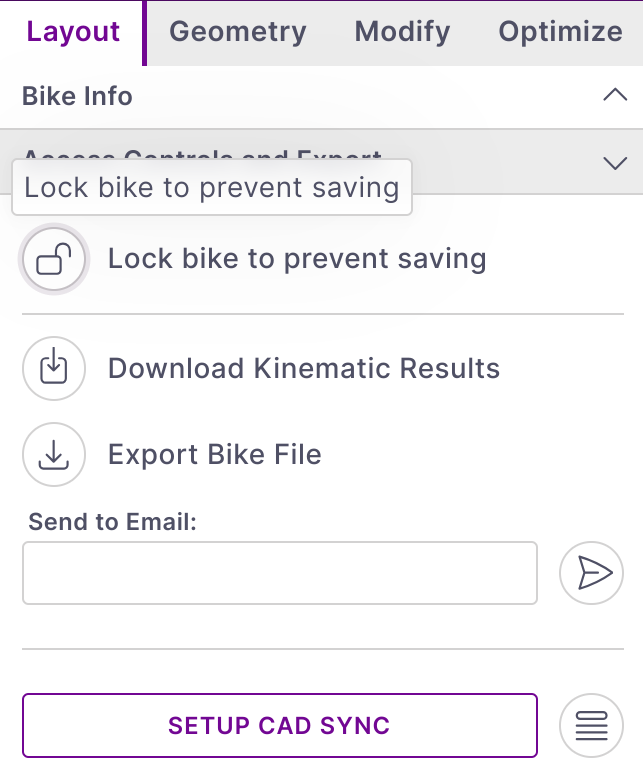
If you want to prevent accidental changes to your reference models you can restrict write access using the Lock feature found in the Access Controls and Export section of the Layout tab. Once locked you cannot save any updates until the model is unlocked.
PDM Flow
When working in a team it can be helpful to prevent multiple people making simultaneous changes to the same file. To prevent this team bikes can be checked in and out. When a user checks a bike out from the Access Controls and Export section no other users can update the model in the database. Once the file is checked back in users can modify as usual.
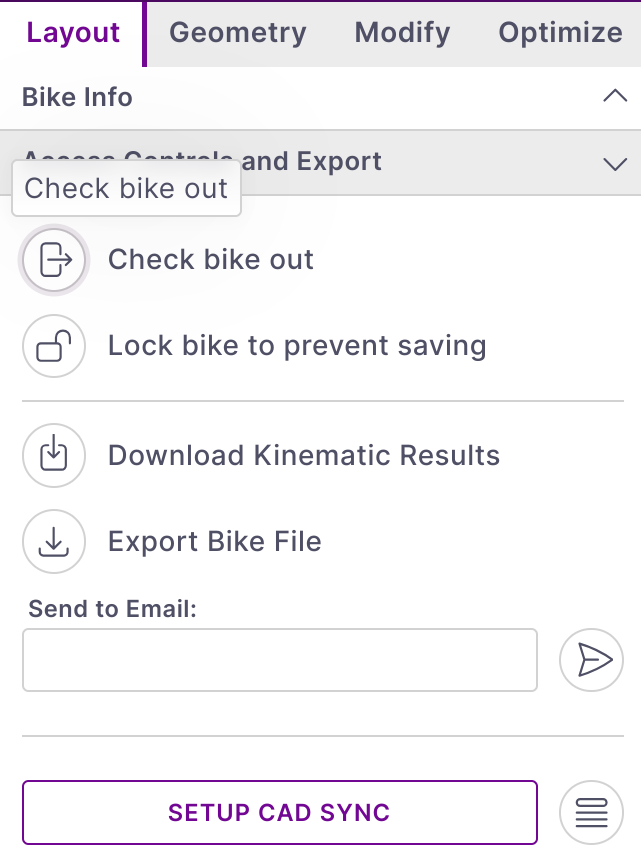
If someone forgets to check the model back in and is unavailable a team admin can do a force checkin.